 Docs
DocsAdmin Dashboard
Web-based monitoring and management interface for SimpleNS.
Access
The dashboard provides a visual interface to manage notifications, debug issues, and configure plugins.
URL: http://localhost:3002 (default)
Credentials
The dashboard uses secure authentication. Default credentials should be changed in production.
- Username:
admin(or value ofADMIN_USERNAME) - Password: Configured in .env (value of
ADMIN_PASSWORD)
Ensure AUTH_SECRET is set in your .env file to a secure random string (e.g., openssl rand -base64 32) for session security.
Features
Dashboard Home
The landing page provides a real-time health overview of your notification service.
- Stats Grid:
- Total Notifications: Aggregate count of all events.
- Delivery Rate: Percentage of successfully delivered notifications.
- Active Queues: Count of Pending and Processing items.
- Alerts / Failed: Indicators for items requiring attention.
- Channel Cards: Scrollable metrics for each active channel (Email, SMS, WhatsApp, etc.), showing traffic distribution.
- Recent Activity: A live feed of the latest notification events.
Events Explorer
Navigate to Events to browse the complete history of notifications.
Key Features:
- Search: Filter by Request ID, Email, Phone, or User ID.
- Filtering:
- Status: Pending, Processing, Delivered, Failed.
- Channel: Filter by specific channel (e.g., "Email").
- Provider: Filter by specific provider implementation.
- Sorting: Sort by Created or Updated date (Newest/Oldest).
- Details: Click the "Eye" icon to view full JSON payloads, delivery timelines, and provider responses.
Failed Events
The Failed page is a dedicated workspace for troubleshooting.
- Bulk Actions: Select multiple failed notifications using checkboxes.
- Retry:
- Retry Selected: Re-queue specific notifications.
- Bulk Retry: Retry up to 100 failed notifications at once.
- Error Analysis: View precise error messages returned by providers or validation logic.
System Alerts
The Alerts page captures operational anomalies that may not be simple failures.
Alert Types:
- Ghost Delivery: Notifications marked as delivered but missing provider confirmation.
- Stuck Processing: Notifications remaining in 'processing' state beyond the timeout threshold.
- Orphaned Pending: Items stuck in 'pending' without being picked up by workers.
Resolution Options:
- Retry: Reset the notification to 'pending' for immediate reprocessing.
- Retry with Warning: Retry but append a warning flag (useful for debugging recursion).
- Bulk Resolution: Resolve up to 100 alerts simultaneously, with optional warning flags.
Payload Studio
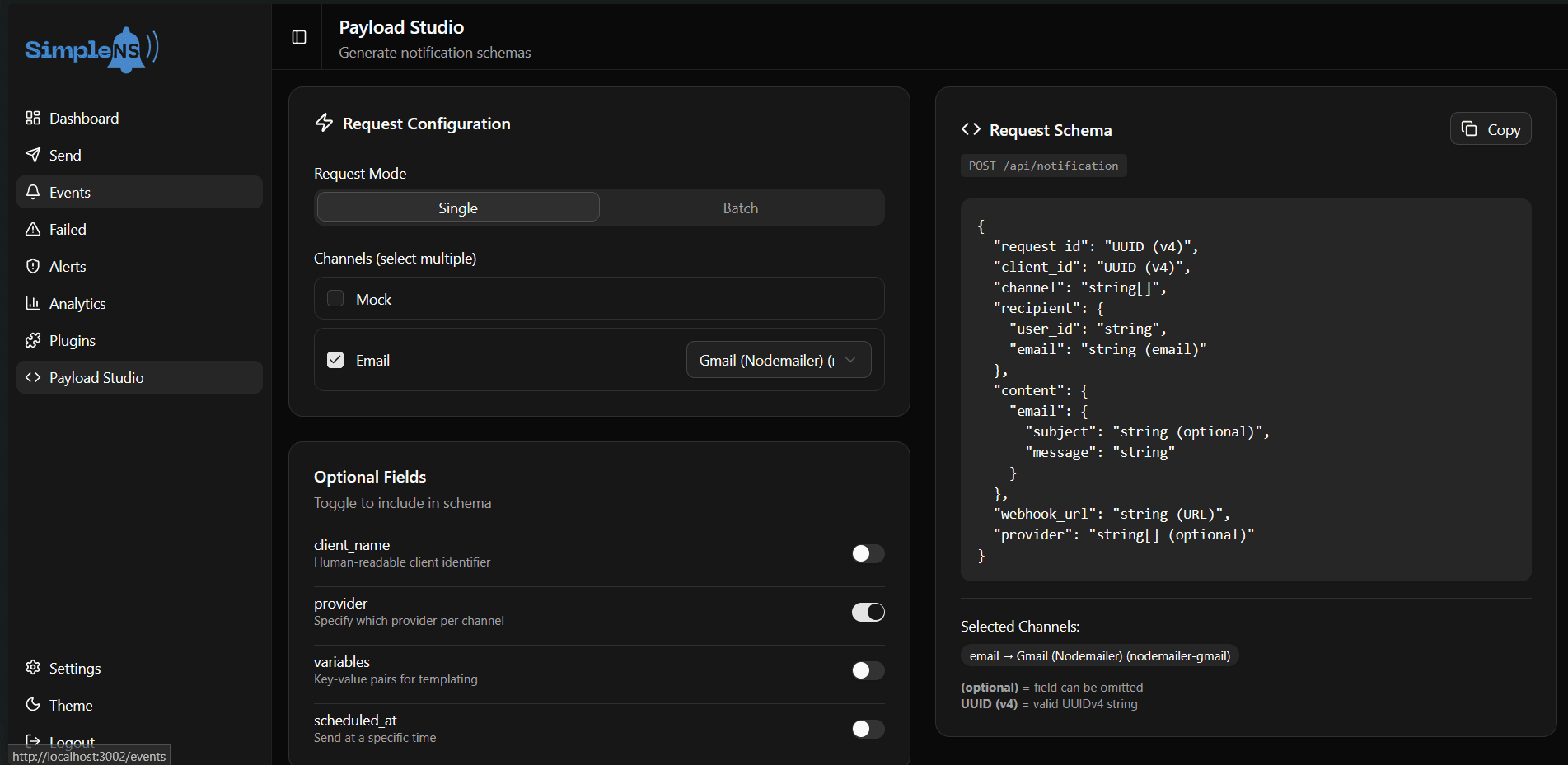
An interactive tool to generate correct API payloads based on your installed plugins.
Select Mode Choose between Single (one-off) or Batch (broadcast) request modes.
Configure Channels Select active channels (e.g., Email, SMS). You can also select specific Providers if multiple are configured.
Toggle Fields
Enable optional fields like client_name, scheduled_at, or variables to see how they fit into the schema.
Generate Schema
The Studio generates a precise JSON Schema indicating active fields and data types (e.g., string (email)). Click Copy to use this in your application code.
Troubleshooting
Login Issues
If you cannot log in or experience redirect loops:
- Verify
ADMIN_USERNAMEandADMIN_PASSWORDin.env. - Ensure
AUTH_SECRETis set. - Check
AUTH_TRUST_HOST=trueif running behind a proxy or in local development. - Clear browser cookies.
No Data / Stats
If the dashboard is empty:
- Verify
MONGO_URIin the dashboard's.envmatches the API server. - Ensure the API server is writing to the same database.
- Check dashboard logs:
docker-compose logs dashboard.